
# Video Editors: Easy Video Editing with Privacy in Mind
Remember when editing a video meant downloading complicated software, learning dozens of tools, and spending hours trying to get everything right?
Thankfully, things have changed.
Today, you can trim a birthday video, resize a clip for Instagram, add subtitles, or put together a short family montage without being a professional video editor.
Online video editing tools have made everyday tasks much simpler. Many platforms now include AI-powered features that can generate captions, suggest edits, and speed up the editing process.
But there’s something worth thinking about before uploading your videos: privacy.
This matters especially when you’re working with personal recordings of your children, family gatherings, birthdays, or moments captured inside your home.
Not every video needs to be uploaded to a cloud-based AI editor. Sometimes, a simple browser-based editing tool is all you need.
In this guide, we’ll look at popular AI video editors, why video privacy matters, and how you can use SafeVideoKit to make everyday video edits.
Why Are Online AI Video Editors Becoming Popular?
Video editing used to feel like something only content creators and professionals could do.
Now, almost anyone can edit a video directly from a web browser.
Whether you’re creating Instagram Reels, preparing a YouTube video, or shortening a personal recording, online editors offer tools that make the process easier.
AI has made some tasks even more convenient.
For example, certain AI video editors can automatically create subtitles, identify pauses, suggest cuts, or help you prepare clips for different platforms.
Here are a few common reasons people use online video editors:
- Trimming unnecessary parts from recordings.
- Creating short videos for Instagram or YouTube.
- Adding subtitles and text overlays.
- Resizing videos for different social media platforms.
- Combining clips into family montages.
- Reducing video file sizes before sharing.
- Improving the overall appearance of recorded videos.
You don’t always need every advanced feature.
If your goal is simply to remove the first 20 seconds of a recording or change its dimensions, a basic video editor can often get the job done.
The important thing is choosing a tool that suits your needs.
Popular Online Video Editors Worth Exploring
There are plenty of video editors available online, but they don’t all offer the same experience.
Some focus on AI-powered content creation, while others are better suited to straightforward editing tasks.
Here are three popular options.
Canva Video Editor
Canva is a familiar choice for people who create social media graphics, presentations, and short videos.
Its video editor includes templates, text overlays, transitions, and tools for creating visual content.
It’s useful for:
- Social media videos.
- Birthday greetings and invitations.
- Short promotional clips.
- Simple video presentations.
- Videos with text and visual elements.
Canva may be a good option if you prefer working with ready-made designs rather than starting from scratch.
Microsoft Clipchamp
Microsoft Clipchamp provides video editing features such as trimming, transitions, audio adjustments, and text overlays.
It also includes AI-assisted features such as automatic captions.
Clipchamp can be useful when you want a more traditional video editing experience without installing a complicated professional suite.
Kapwing
Kapwing is an online video editing platform designed for creating and editing digital content.
It offers tools for working with video timelines, subtitles, resizing, and other content creation tasks.
It’s particularly useful for people who regularly create videos for social media or online audiences.
Which video editor should you choose?
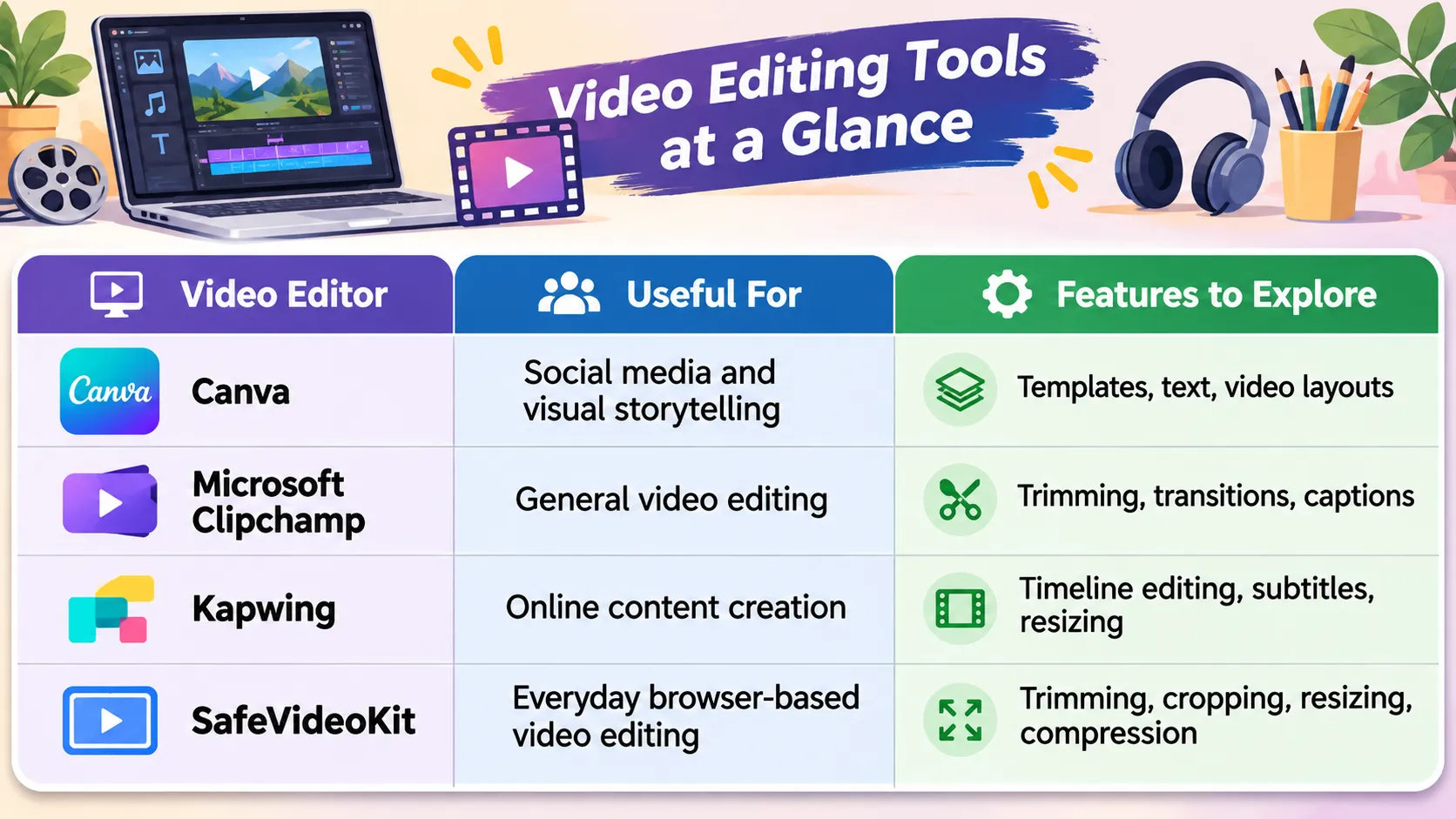
All four tools serve different needs.
If you want templates, AI-assisted features, or more involved content creation, a full-featured platform may be suitable.
If you only need to crop, trim, rotate, or compress a recording, you might prefer something simpler.
It’s also worth checking how each platform processes uploaded videos, especially when you’re editing personal footage.
Why Privacy Matters When Editing Baby and Family Videos
Imagine you’ve recorded your baby’s first steps.
It’s one of those moments you’ll probably want to keep forever. You might want to trim the recording, brighten the video, or send a short clip to grandparents.
Before using an online editing platform, though, it’s worth understanding what happens to the video file.
Some editors process footage on remote servers. Others can perform certain editing tasks locally in your browser.
Both approaches have their uses, but they handle your files differently.
And when those files contain private family moments, the difference matters.
What should you check before uploading a video?
Here are a few questions worth asking:
1. Where is my video processed?
Does the editor work directly on your device, or does it upload the recording to a remote server?
2. Is the video stored after editing?
Some services keep uploaded files or saved projects for a period of time.
Check whether the platform explains its storage and deletion policies.
3. Are AI features processing my footage?
Some AI-powered features rely on additional cloud services.
It’s worth understanding whether those features involve sending your video to another processing system.
4. Can I delete uploaded recordings?
Look for information about deleting original videos, edited versions, and saved projects.
5. Who can access the finished video?
Check whether your projects are private by default and whether sharing requires an additional action.
These questions don’t mean that every cloud-based editor is unsafe.
They simply help you make informed decisions.
A family video might reveal your home’s interior, someone’s face, a school uniform, or other identifying details.
That’s why it’s sensible to be careful about where personal recordings are uploaded.
Make Everyday Video Edits with SafeVideoKit
Not every video project needs an advanced AI editor.
Sometimes you just want to cut out an awkward beginning, change the video size, or remove parts that don’t need to be there.
For those situations, SafeVideoKit brings together a collection of browser-based video editing tools.
You can explore options for trimming, cropping, resizing, compressing, rotating, and working with subtitles.
SafeVideoKit also describes local browser processing for many of its tools, which can reduce the need to send personal video files to remote editing servers.
Here are a few practical ways to use the available tools.
Crop and Resize Your Videos
Have you ever recorded a video and noticed that there’s too much empty space around the subject?
Maybe you’re filming a birthday celebration, but half the frame is taken up by the background.
Cropping can help you focus on the part of the video that matters most.
You can use SafeVideoKit’s Crop Video tool to adjust the visible area.
Resizing, on the other hand, changes the video’s dimensions or resolution.
For example, a video recorded horizontally might need to be prepared differently for a vertical social media format.
SafeVideoKit’s Resize Video tool lets you explore different output resolution options.
When is this useful?
- Preparing family recordings for social media.
- Removing unnecessary background areas.
- Adjusting video dimensions for different screens.
- Creating clips with a more focused composition.
Just remember that cropping may remove parts of the original frame.
Before exporting, preview the video to make sure important details are still visible.
Trim and Cut Unwanted Parts
Let’s say you’ve recorded a ten-minute birthday video.
The first minute shows everyone getting ready, there’s a long pause in the middle, and the most memorable moment lasts only 30 seconds.
You probably don’t need to share the entire recording.
That’s where trimming comes in.
With SafeVideoKit’s Video Trimmer, you can shorten a recording and keep the section you want.
The Video Cutter is another option for selecting parts of a video.
Trimming is useful when you want to:
- Remove long introductions.
- Cut out accidental recordings.
- Shorten lengthy family videos.
- Prepare quick clips for messaging apps.
- Keep memorable moments without unnecessary footage.
For example, you could turn a ten-minute birthday recording into a one-minute highlight that’s easier to watch and share.
You don’t need complicated effects to make a video more enjoyable. Sometimes, removing the unnecessary parts is enough.
Compress Large Video Files
Modern smartphones can record videos in impressive quality.
That’s great for preserving memories, but it also means video files can become very large.
A short recording might take up hundreds of megabytes, especially when filmed at a high resolution.
Large files can be inconvenient when you’re trying to email a recording, save storage space, or send a clip through a messaging application.
SafeVideoKit offers a Video Compressor that can help reduce video file sizes.
If you’re working specifically with MP4 videos, you can also explore the MP4 Compressor.
How does video compression work?
Compression reduces the amount of data needed to store a video.
Depending on the settings, the compressed version may take up less space while still looking suitable for everyday viewing.
However, stronger compression can affect image quality.
For family recordings you want to preserve, it’s a good idea to keep the original high-quality version.
Use a compressed copy when you need a smaller file for sharing.
Rotate, Flip, and Split Videos
We’ve all recorded a video that looked fine on the phone but appeared sideways when opened somewhere else.
It happens, especially when switching between portrait and landscape recording.
Fortunately, correcting the orientation doesn’t need to be difficult.
SafeVideoKit’s Rotate Video tool can help adjust the viewing direction.
You can also use the Video Splitter when you want to divide a longer recording into shorter sections.
These tools can be helpful for organizing family recordings, creating separate clips from events, or correcting the way a video appears.
For example, you might split a long family celebration into individual clips for the cake-cutting, speeches, and group activities.
That way, each moment is easier to find later.
Add Subtitles or Extract Audio
Sometimes, people watch videos without turning on the sound.
Maybe they’re in a quiet room, travelling, or simply scrolling through social media.
Subtitles make your video easier to follow in these situations.
They can also improve accessibility for people who have difficulty hearing the audio.
SafeVideoKit provides an Add Subtitles to MP4 tool.
You can use it to add manually written captions or work with an existing subtitle file.
For example, you might want subtitles for:
- A family message.
- A short educational recording.
- A personal interview.
- A birthday greeting.
- A social media video.
If you only need the sound from a recording, SafeVideoKit also offers an Extract Audio tool.
This can be useful when you want to save spoken audio, music, or another sound recording separately from the video.
Resize Videos for Instagram, YouTube, and Other Platforms
A video that looks perfect in your phone’s gallery might not look the same when uploaded to Instagram or YouTube.
Different social media formats use different aspect ratios.
For example, vertical videos are commonly used for Instagram Reels, TikTok, and YouTube Shorts.
Traditional YouTube videos often use a wider landscape layout.
Here are some common video dimensions:
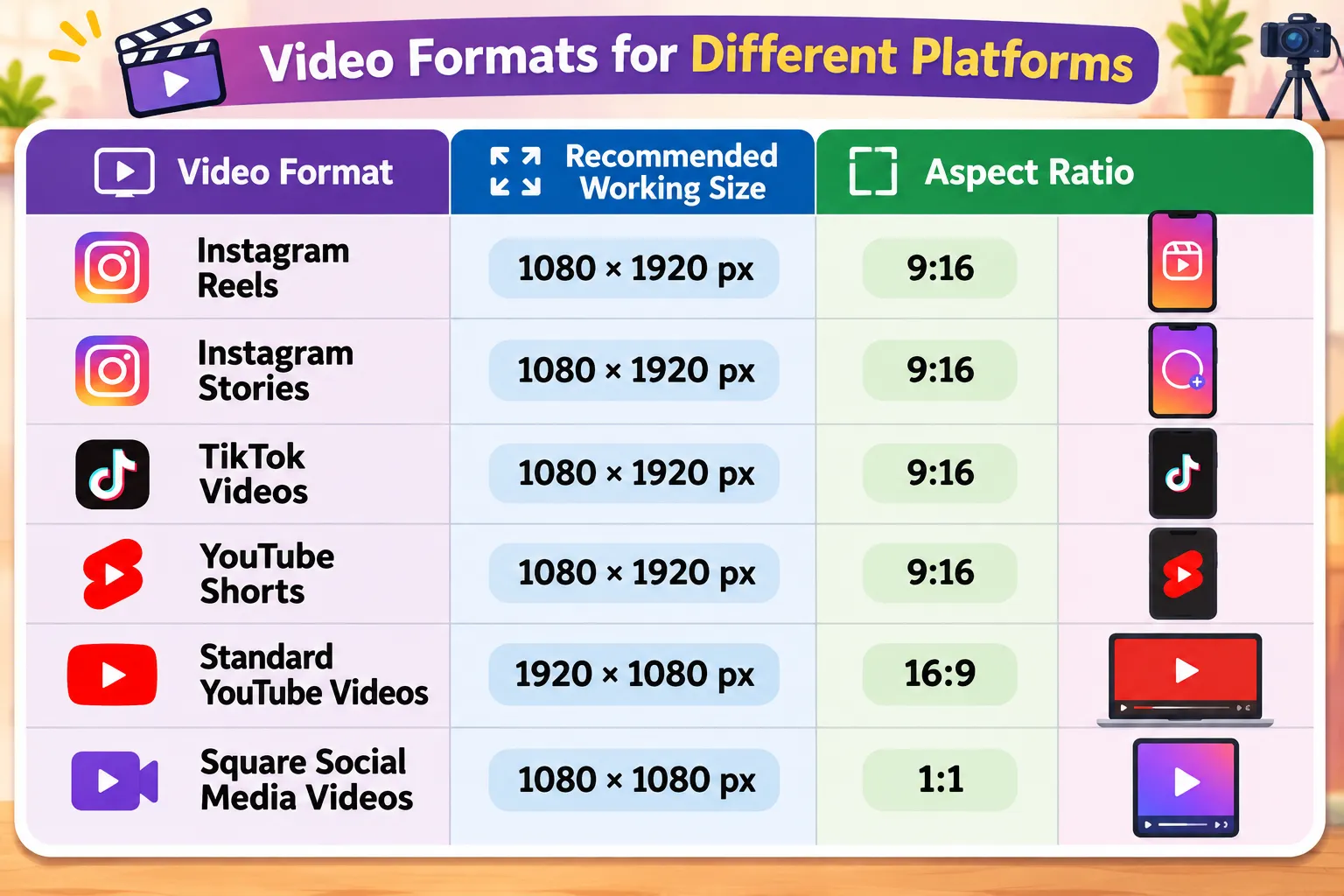
These are common working sizes, not strict requirements for every upload.
Prepare videos for different platforms
If you’re preparing a video for Instagram, you can explore SafeVideoKit’s Resize for Instagram tool.
For YouTube content, the Resize for YouTube tool provides another option.
Before resizing, think about how your video was originally recorded.
If you recorded it horizontally and want to create a vertical Reel, you may need to crop parts of the frame.
Be careful not to cut off faces, important objects, or text.
When editing personal videos, remember to check the privacy settings of the platform where you’ll eventually share them.
Resizing a video is one thing. Deciding who gets to see it is another.
Edit a Video Online with SafeVideoKit
If you’ve never used a browser-based video editor before, the process is usually straightforward.
You don’t need to learn every available feature.
Start with the change you want to make, whether that’s shortening a clip, adjusting its size, or compressing it.
Here’s a simple workflow.
Step 1: Open SafeVideoKit
Visit SafeVideoKit and choose the editing tool that matches your task.
Step 2: Choose your video
Select the video you want to work with from your device.
Step 3: Make your edits
Depending on the tool, you can trim the recording, crop the frame, adjust the resolution, rotate the video, or apply other available changes.
Step 4: Preview the result
Check the edited video before exporting.
Look for unwanted cropping, missing footage, incorrect orientation, or quality changes.
Step 5: Export your video
Once you’re satisfied with the changes, export the edited recording.
Step 6: Save the finished file
Download the video and keep a copy of the original recording if it’s something you want to preserve.
For simple changes, there’s no need to turn the process into a complicated editing project.
Does SafeVideoKit Keep Your Videos Private?
Privacy is one of the first things worth considering when choosing an online video editor.
That’s especially true when your recordings include children, family members, or personal moments filmed at home.
SafeVideoKit states that most of its tools process video files directly within your browser.
This means supported editing tasks can run locally rather than requiring the original video to be sent to SafeVideoKit’s servers.
For example, its video resizing documentation describes browser-based processing where supported.
This can be useful when you want to make simple edits while limiting how often personal footage is transferred between services.
Tips for Editing Family Videos Safely
Editing family videos should be enjoyable.
Whether you’re preparing a birthday montage, keeping a baby’s first steps, or making a short holiday video, a few simple habits can help you protect those memories.
Keep the original recordings
Before trimming or compressing a family video, save the original somewhere secure.
That way, you won’t lose important footage if you decide to make another version later.
Be careful with personal details
Look for identifying information in the background.
A recording might show a home address, school name, or private document without you noticing.
Cropping or removing those parts can help reduce what you reveal when sharing.
Check the tool’s privacy information
Before using an unfamiliar online editor, take a moment to understand how it processes uploaded files.
This is particularly important when working with recordings of children.
Review your video before sharing
Watch the finished recording from beginning to end.
Check that it doesn’t contain private conversations, accidental footage, or details you didn’t intend to share.
Choose your audience carefully
Not every family video needs to become a public social media post.
Sometimes, sharing a clip privately with relatives or close friends is a better choice.
Remember, even videos edited locally can be copied or shared further once you send them to someone else.
Conclusion
Video editing doesn’t have to be complicated.
Whether you’re shortening a birthday recording, preparing a video for Instagram, or saving a family memory, there are plenty of tools that can help you get the result you want.
AI-powered video editors are useful when you need automated features and advanced creative options.
But for everyday tasks like trimming, cropping, compressing, rotating, and resizing, a simple browser-based editor may be all you need.
With SafeVideoKit, you can explore practical video editing tools and prepare recordings for different uses without automatically relying on a full AI editing platform.
Whatever tool you choose, take a moment to understand how it handles your files, especially when editing personal videos.
Because preserving memories isn’t just about making them look better. It’s also about deciding how they’re stored, edited, and shared.
Explore SafeVideoKit and find the right tool for your next video editing task.